FinderHelper is a community lost-and-found app for schools, events, neighborhoods, teams, and local groups. The current app lets people sign in, allow permissions, post lost or found items, choose Nearby or Exact location sharing, review potential matches, chat in-app, run groups, generate public-group posters, and manage account settings from Profile.
Permissions, posting, match review, group tools, safety guidance, deletion steps, profile activity, and legal policies are all documented in plain language.
Parents, teachers, schools, clubs, venues, event staff, apartment buildings, and neighborhood helpers can all organize lost-and-found in one place.
Use FinderHelper from the first login all the way through posting, matching, messaging, group coordination, and marking an item returned.
These are the main flows available across the current app, ordered so the journey makes sense from posting to recovery, with potential matches highlighted first because they are one of the most powerful parts of FinderHelper.
After an item is posted, FinderHelper can surface potential matches using item details, location logic, and map context. Users can review exact and nearby possibilities, compare details, and jump straight into the match flow without guessing where to start.
Open the strongest lead first when details align closely.
Check area-based leads when someone shared a general location.
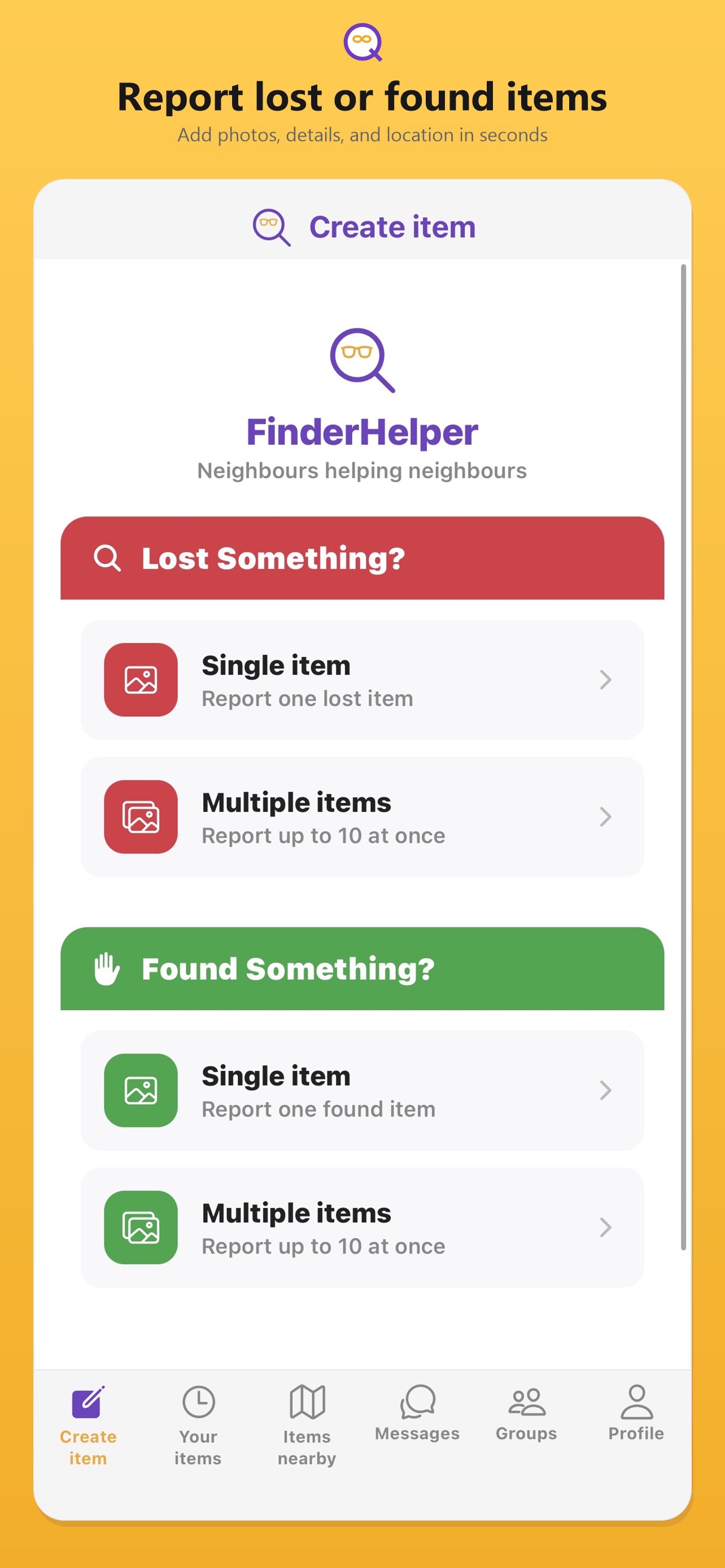
Users choose lost or found, select single or multiple, add a photo, write notes, and choose Nearby or Exact sharing. The form can work for a school office, a workplace desk, a little free library shelf, or an event recovery table.
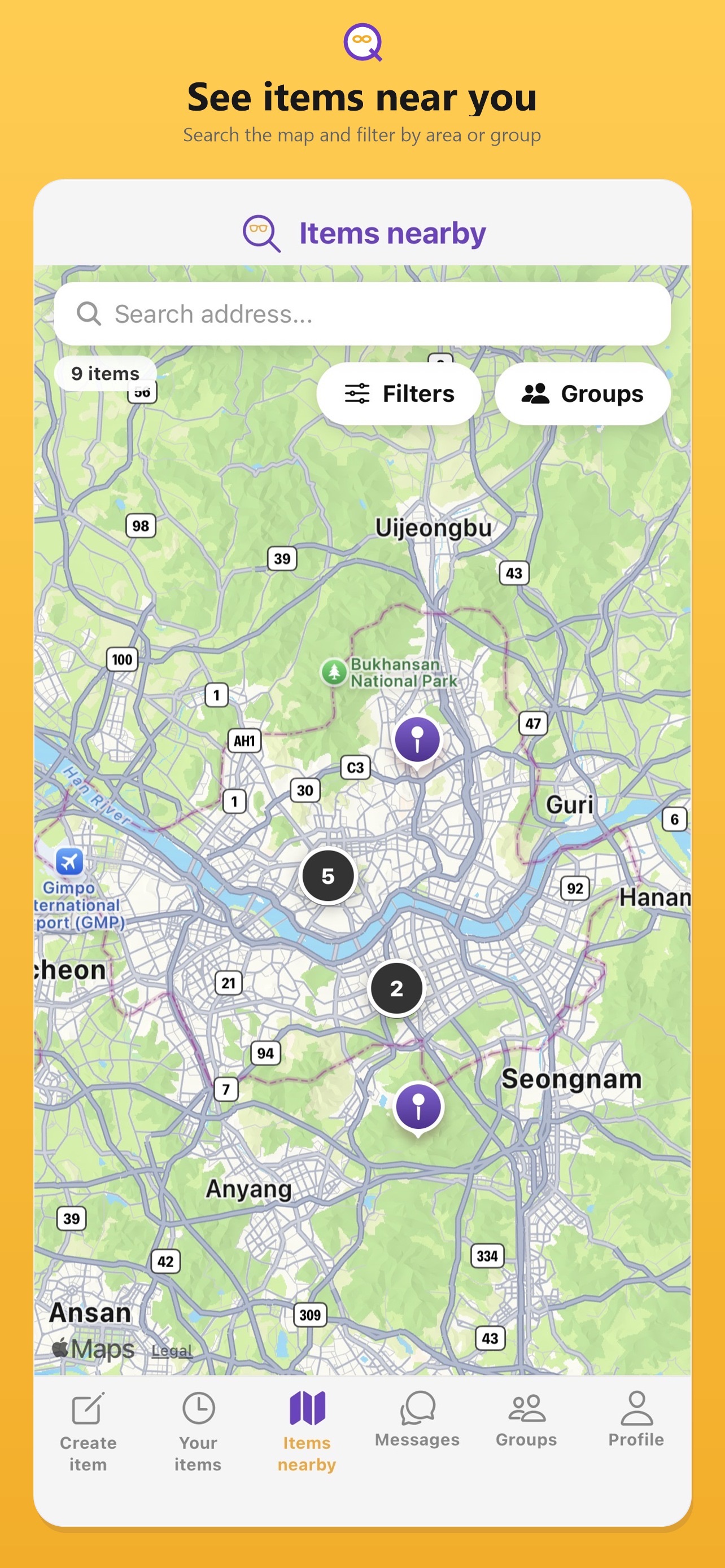
The app uses maps to show clusters, pins, and area-based sharing. The website visual below uses a static Vancouver-inspired background so the section feels like a real map without relying on paid map tiles.
Users can start a conversation from an item, a match, or the map. The thread keeps the context tied to the right item so people can confirm details without moving the conversation somewhere else.
Exact matches can be claimed from maps, matched item flows, and item details. Once claimed, FinderHelper can prompt the user to leave a thank-you note and then clears the finished match flow.
Confirm ownership or confirm return from the map or potential match flow.
Optionally leave a thank-you note after a successful claim.
The user returns to the normal app flow instead of staying stuck inside the match map.
The app supports private and public groups. Public groups can require join approval, let owners or co-owners generate an 8.5 x 11 invite poster, and use QR-based join flows to bring in more helpers for a school, workplace, apartment lobby, little free library, or event recovery station.
Choose whether join approval is required and whether invite-poster generation is allowed.
Owners and co-owners can use QR and poster tools to help nearby people open or join the right group.
Good fits include schools, workplaces, little free libraries, apartment lobbies, sports events, and temporary lost-and-found tables.
The Profile tab includes a QR code action, activity cards, summary rows, and a thank-you board that can expand when someone leaves a message after a successful return. That profile structure is more useful than a generic settings preview, so the website now mirrors it more closely.
"Thanks for keeping it safe. I got it back after work."
Groups let helpers organize posts for a specific community while still using the same maps, messages, item details, and join tools found elsewhere in the app.
The Help Center breaks the app down into practical, step-by-step topics so users can learn the exact screen they are on.
Learn sign-in, username setup, the permissions screen, navigation tabs, and what first-time users should expect.
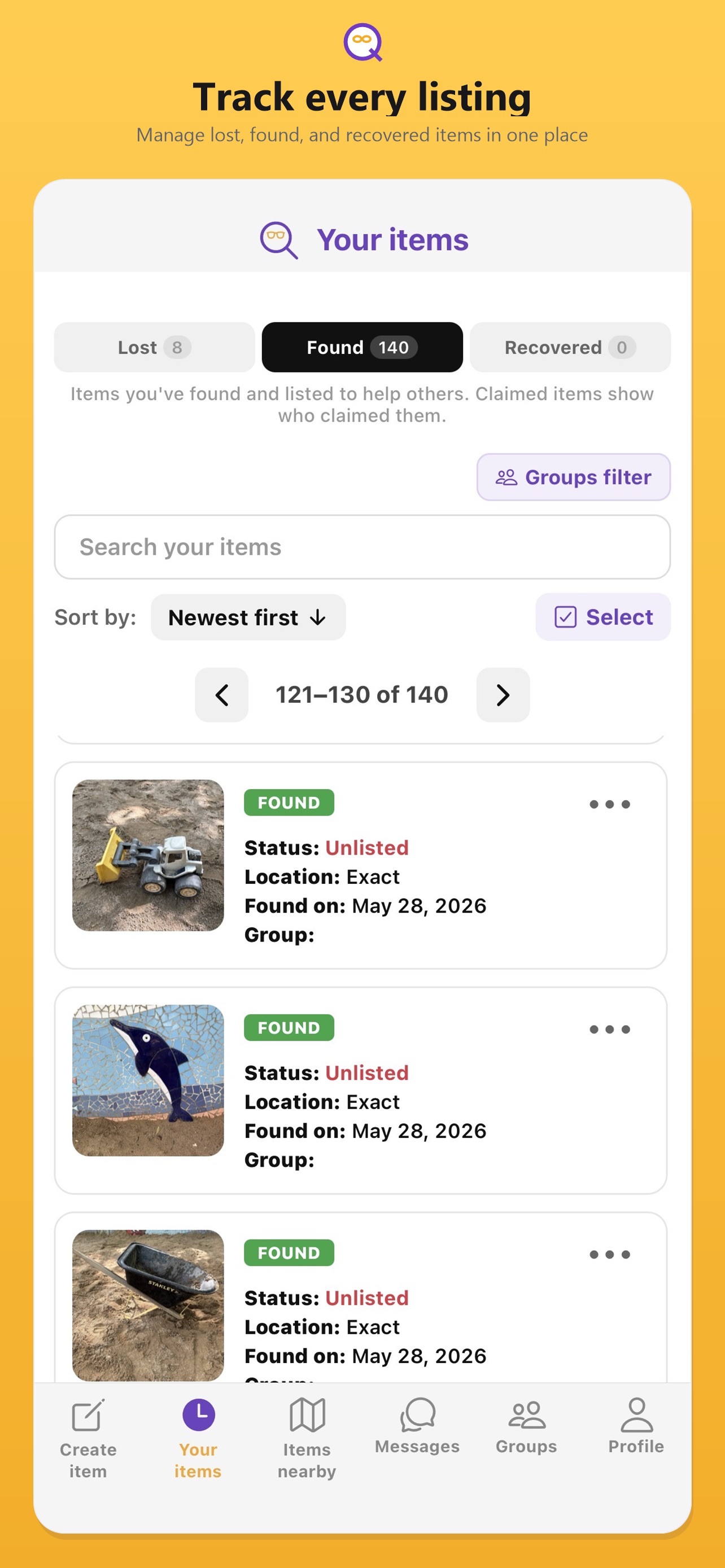
Read the guideWalk through lost and found creation, taking photos, choosing Nearby or Exact, and managing active listings.
Read the guideLearn how the main map, potential matches, filters, claims, and thank-you flows work.
Read the guideSee how to start a conversation from items, understand unread badges, and keep communication inside the app.
Read the guideManage avatars, activity tracking, thank-you board entries, group memberships, QR joining, and in-app account deletion.
Read the guideReview best practices for safe exchanges, privacy, and deciding when to report or stop a conversation.
Read the guideSee how private and public groups work, when posters are available, and why schools or events might publish one.
Read the guideFollow the app flow, learn what is removed, and see the fallback process if you cannot sign in.
Read the guide